Wi-Fi password sign for guests: free printable template with QR code
A Wi-Fi password sign for your holiday let or Airbnb: what to put on it, how to add a QR code that connects phones, where to hang it. Free Word and PDF template.
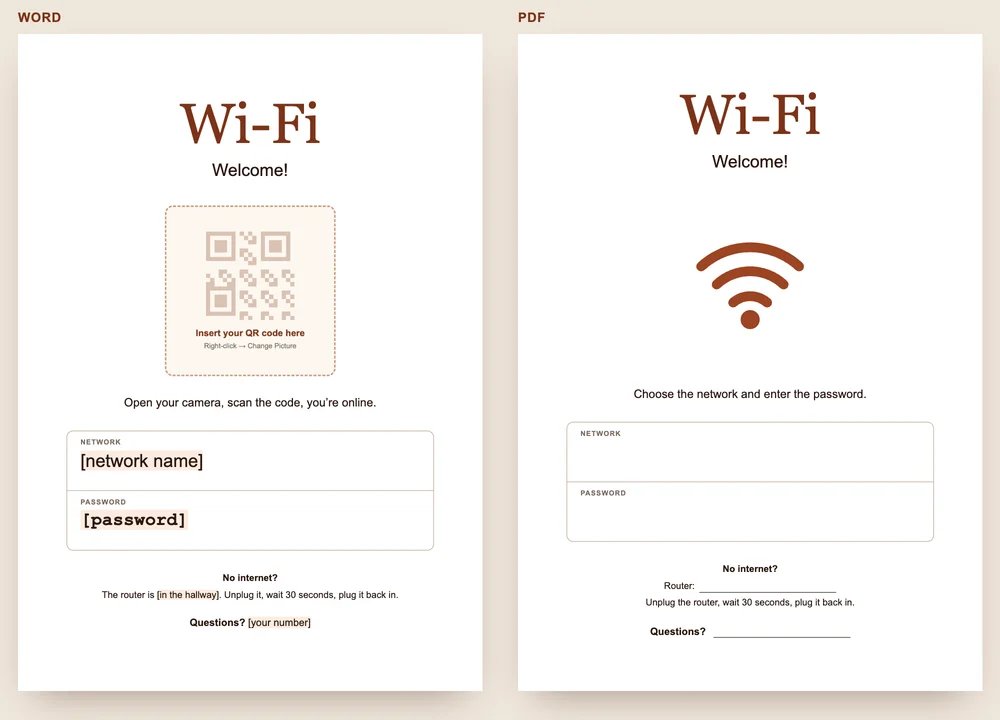
A Wi-Fi password sign for guests needs five things: the network name, the password, a QR code that connects a phone without typing, one line for when the internet stops working, and your phone number. The free template has all five.
Download the Wi-Fi sign (Word)
What should a Wi-Fi sign for guests say?
- The network name, exactly as phones show it. Capitals matter: “Guest_WiFi” is not “guest_wifi”.
- The password, in a typeface where 0 and O, l and 1 look different. The template uses Courier New.
- A QR code. Guests open the camera, scan and they’re online, without typing a single character.
- What to do with no internet: where the router is, and that a restart usually fixes it.
- Your number, for everything the sign doesn’t answer.
In our experience, guests connect with a QR code on the poster on the wall, and we almost never get questions about the Wi-Fi. Guests have their own network, separate from our devices.
How to make a Wi-Fi QR code and add it to the sign
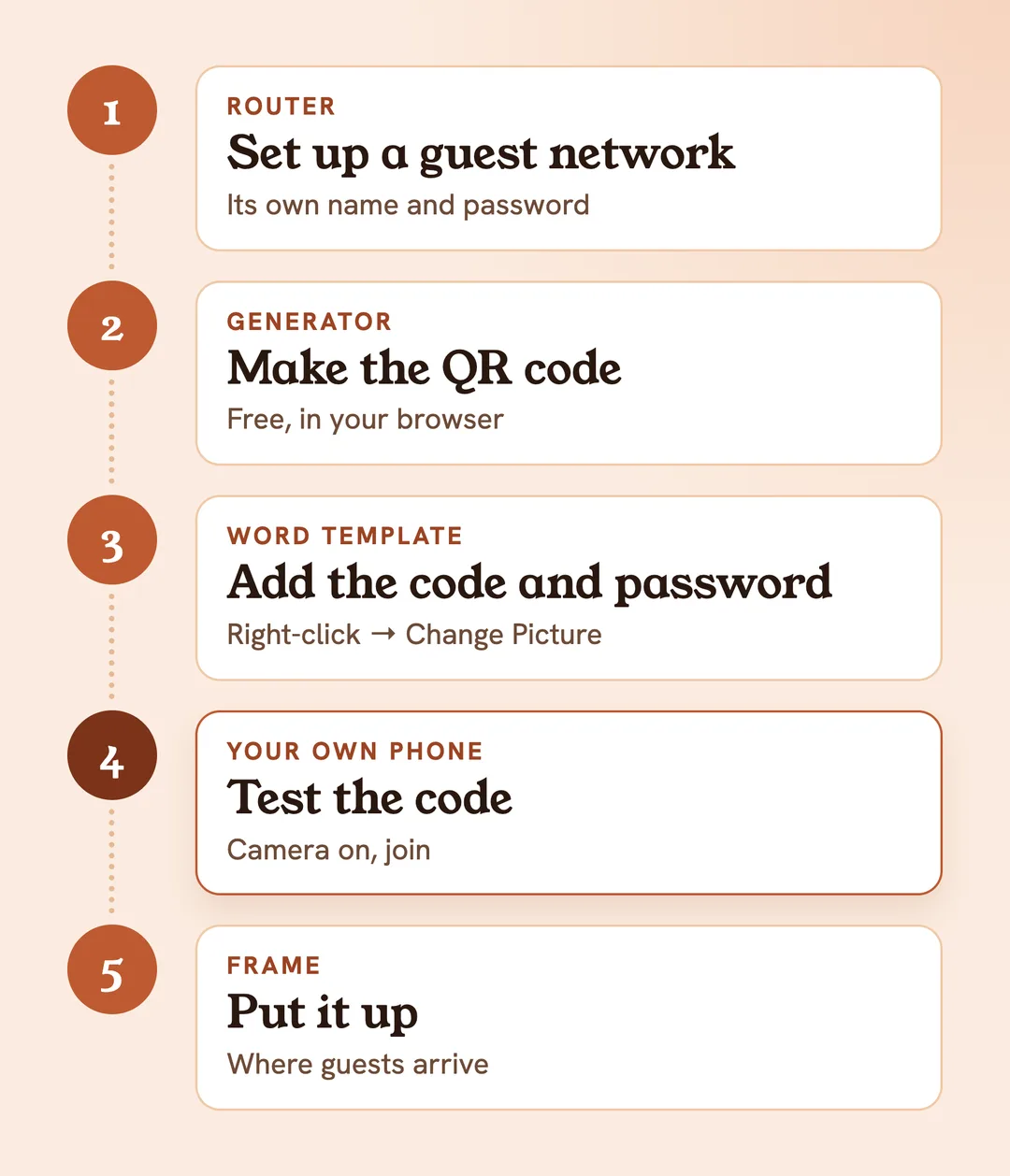
- Open our free Wi-Fi QR code generator and type the network name and password. WPA/WPA2/WPA3 is already selected; change it only for an old WEP router. The code is made in your browser, so the name and password aren’t sent anywhere.
- Click “Download PNG”.
- Open the Word template, right-click the box that says “Insert your QR code here” and choose “Change Picture”. The code takes the size and place of the box.
- Fill in the sand-coloured fields: network, password, where the router is, your number.
- Print the sign and test it with your own phone: camera on the code, join the network. Only then put it up.
No Word? Print the PDF and write the network and password in pen, in capitals. The PDF has no QR code.
Where to put the Wi-Fi sign
Where guests arrive and reach for their phone: in the hallway, by the dining table or on the desk. In an A4 or A5 frame it stays clean and doesn’t end up in a suitcase. A second copy on the desk helps anyone working from your place.
The QR code contains the password, so anyone who can see the sign can get on your network. Keep it away from windows and the shared stairwell, and out of your listing photos.
If the router sits in plain view, cover the sticker with the main password: guests only need the guest network password. If the router is locked away, delete the restart line from the template and leave just your number.
Why set up a guest network?
Most routers have a guest network in their Wi-Fi settings. Guests get their own network and password. Your own devices, such as a printer, camera or smart TV, stay on the main network, and you can change the guest password without reconnecting any of them.
Airbnb gives hosts the same advice (Airbnb Help Centre):
- an encrypted guest network, such as WPA2;
- share the password only once the reservation is confirmed;
- keep the router and modem somewhere guests can’t get to;
- strong passwords for the router and modem, changed often, and regular checks for software updates;
- tell guests the network is for legal use only.
When you change the guest password, make a new QR code and print the sign again: the old code won’t connect any more.
Put your Wi-Fi speed in the listing
Airbnb also suggests adding your Wi-Fi speed to the listing, and a proper workspace if you want remote workers to book. A number such as “150 Mbps” answers the question your sign can’t: is it fast enough for video calls? Run the test where guests actually sit, at the desk or on the sofa, not next to the router.
A paper sign or a digital guide?
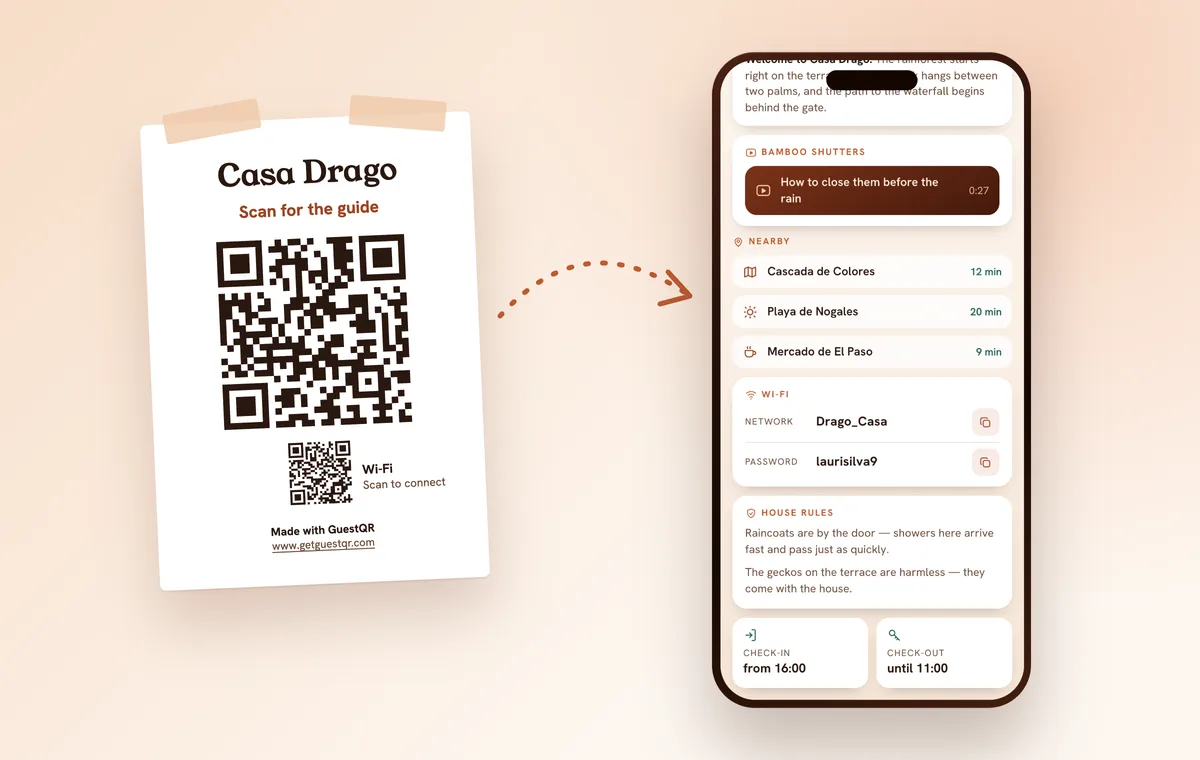
For the Wi-Fi alone, a paper sign is enough. But guests also ask about check-out time, bins and parking, and those belong in a digital welcome book.
With GuestQR, the Wi-Fi is in the digital welcome book: guests copy the network name with one tap, and the password appears when they tap “Show”. The QR poster for the wall carries a small Wi-Fi code next to the big code for the guide: point the camera, and the phone joins the network. The network name and password aren’t printed in words on the sheet. If you change the guest password, update it in the guide and print the poster again. Guests read the guide in their language, one of eight, with no app to install.