Airbnb check-in instructions: message templates and when to send
Airbnb check-in instructions in one message: what to include, when to send it and how to schedule it on Airbnb and Booking.com. Free Word and PDF templates.
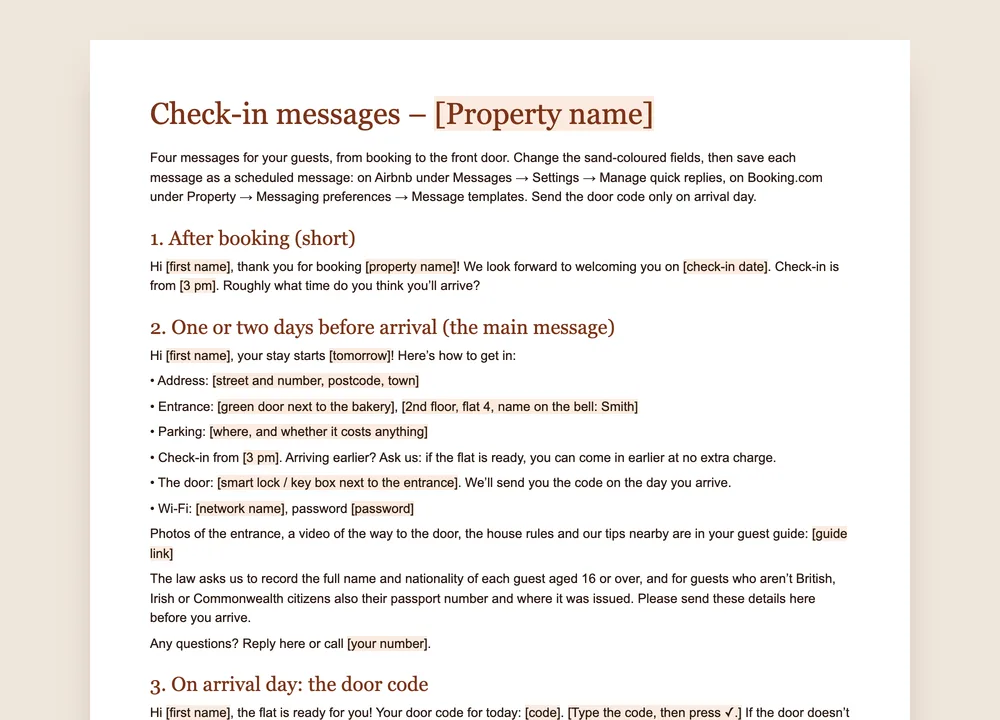
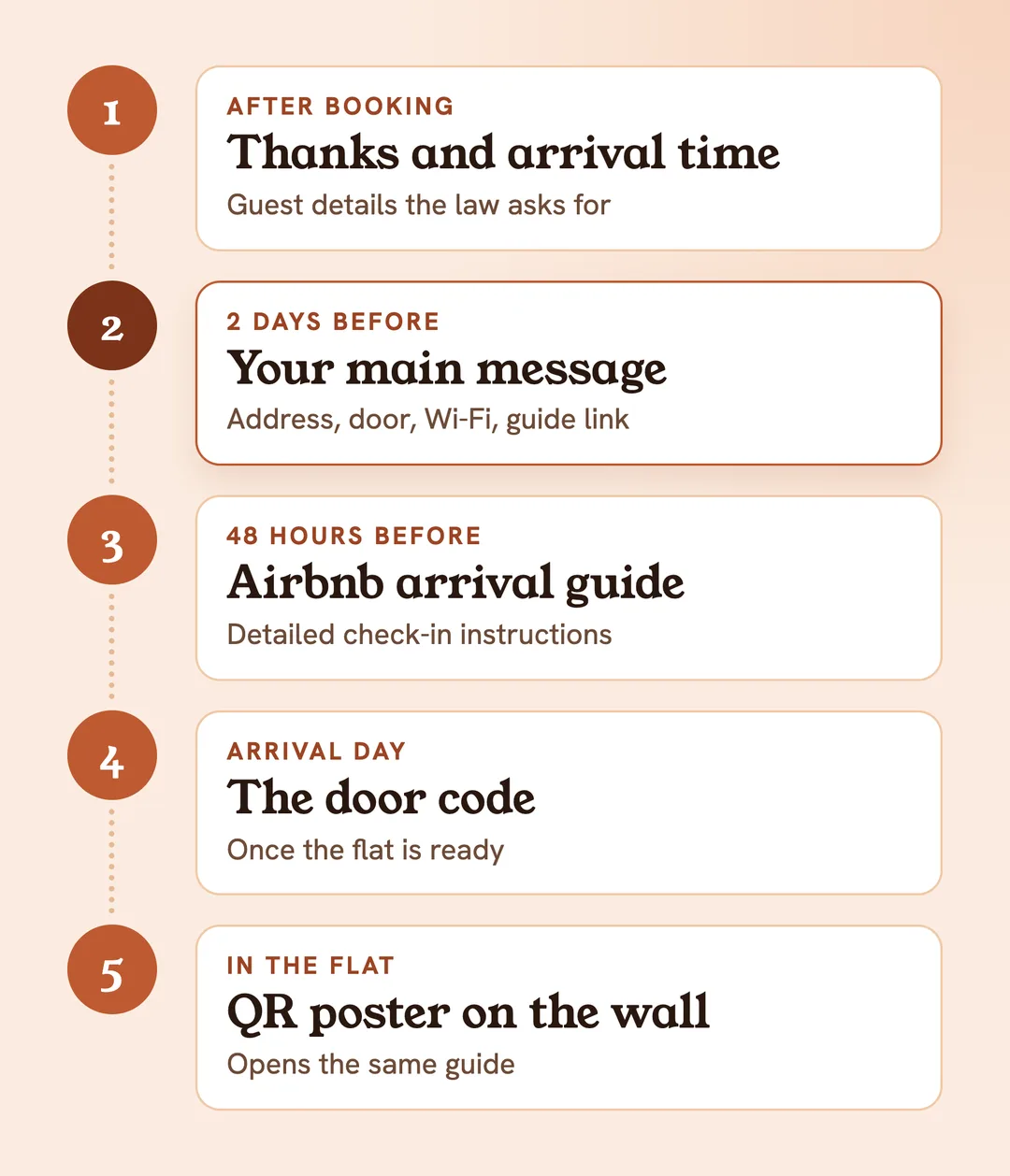
Good Airbnb check-in instructions fit into one message, sent one or two days before arrival: the address and the entrance, parking, the check-in time, how the door opens, Wi-Fi, your number and the link to your guest guide. The door code comes separately, on the day itself. The template has four ready-made messages, from the booking to the front door.
What to put in your check-in message
- The address, with the postcode, exactly as guests will type it into a map app.
- The entrance: which door, which floor, which flat, the name on the bell.
- Parking: where, and whether it costs anything.
- The check-in time, and what happens if guests arrive earlier.
- How the door opens: smart lock, keypad, lockbox or a meeting.
- Wi-Fi: network name and password.
- Your phone number, for when something doesn’t work.
- The link to your guest guide, with photos of the entrance and the house rules.
From our experience, one message is enough. It goes out one or two days before arrival, with the guide link in it, so guests read the instructions and the house rules before they set off. We send the door code ourselves on the day of arrival. The question we still get most often is about early check-in, even though the time is in the message. Our answer: free of charge, if the flat is ready.
Leave out what guests don’t need to get in: the whole house manual, appliance instructions, a list of ten restaurants. That belongs in the guide. A message the length of a page gets skimmed, and the code gets lost in it.
When to send which message
- Right after booking: a short thank-you, the check-in time and one question: roughly when will you arrive? Before a booking, Airbnb requires all communication to stay on Airbnb (Airbnb policy), so your phone number and the guide link come after it.
- One or two days before arrival: the main message from the list above. Sent a week ahead, it gets forgotten. Sent on the day, it reaches guests who are already on the road.
- On arrival day: the door code, once the flat is ready.
- When guests ask to come earlier: a quick yes or not yet. Both replies are in the template.
How to schedule check-in messages on Airbnb
Airbnb has two places for this. The first is the arrival guide in your listing (Airbnb Help): under “Listings” pick the property, open “Listing editor”, then “Arrival guide”, choose a “Check-in method” (Smart lock, Keypad, Lockbox, Building staff, In-person greeting or Other), add your instructions and press “Save”. Guests see the method, but the detailed instructions only 48 hours before check-in.
The second is scheduled quick replies (Airbnb Help):
- Click “Messages”, then “Settings”.
- Click “Manage quick replies”, then “Create”.
- Name the template and paste the message.
- Under “Choose listings”, pick the property; under “Scheduled for”, pick the moment, for example two days before check-in.
- Click “Save”.
Instead of typing everything in, insert details: “Guest’s first name”, “Check-in time”, “Address”, “Directions”, “Wi-fi name”, “Wi-fi password” and more. Airbnb fills them in from the listing and the reservation and sends the message in the listing’s time zone. Before saving, switch on “Send for last minute bookings and short stays”. Without it, a message scheduled for two days before check-in is skipped if someone books on the day. With it, the message goes out at the moment of booking.
How to schedule check-in messages on Booking.com
Booking.com sends templates at fixed moments: when a guest makes a booking, one week before arrival, three days before, one day before, on the day of arrival and one day before departure (Booking.com Partner Hub).
- In the extranet, open “Property”, then “Messaging preferences” and the “Message templates” tab.
- Click “Create new template”, write the message and add pre-filled blocks such as guest name or check-in time.
- Confirm the language, click “Continue”, give the template a name and a topic, and save it.
- In the “Template scheduler” tab, click “Schedule a template”, choose the moment and the template, then “Add to schedule”.
Save other languages under the same template name: each guest gets their own language, and the others get the default one. Booking.com suggests English as the default.
Two rules catch many hosts out. Links you haven’t approved are removed, and guests see “[Link was removed]” instead. Add your guide’s address first under “Messaging preferences” and “Security settings”, after two-factor authentication (Booking.com Partner Hub). And PDFs and QR codes aren’t supported as attachments: send the guide as a link, not as a picture of a QR code.
Overseas guests: the details the law asks for
The Immigration (Hotel Records) Order 1972 applies to any premises where sleeping accommodation is provided for reward, so to holiday lets too. Every guest aged 16 or over gives you their full name and nationality. Guests who aren’t British, Irish or Commonwealth citizens also give the number and place of issue of their passport. You keep the record for at least 12 months.
How the record should look is in our guest register template, and how check-in works without meeting anyone is in our guide to Airbnb self check-in in the UK.
Check-in messages ready to copy
After booking. “Hi [name], thank you for booking [property name]! We look forward to welcoming you on [date]. Check-in is from [3 pm]. Roughly what time do you think you’ll arrive?”
One or two days before arrival. “Hi [name], your stay starts [tomorrow]! The address is [street, number, postcode, town]. The entrance is [the green door next to the bakery], [2nd floor, flat 4, name on the bell]. Parking: [where]. Check-in from [3 pm]; arriving earlier? Ask us: if the flat is ready, you can come in earlier at no extra charge. The door has a [smart lock], and we’ll send you the code on the day. Wi-Fi: [network], password [password]. Photos of the entrance and a video of the way to the door are in your guide: [guide link]. Questions? Call [your number].”
On arrival day. “Hi [name], the flat is ready for you! Your door code for today: [code]. If the door doesn’t open, call us on [your number] and we’ll help straight away.”
When guests ask to arrive earlier. “Good news: the flat is ready earlier today. You can check in from [12 noon], at no extra charge.” Or: “Cleaning finishes at around [1 pm]. We’ll message you as soon as the flat is ready.”
On the last day, the same idea works for leaving: our checkout instructions template has the evening-before message.
The message and the digital welcome book
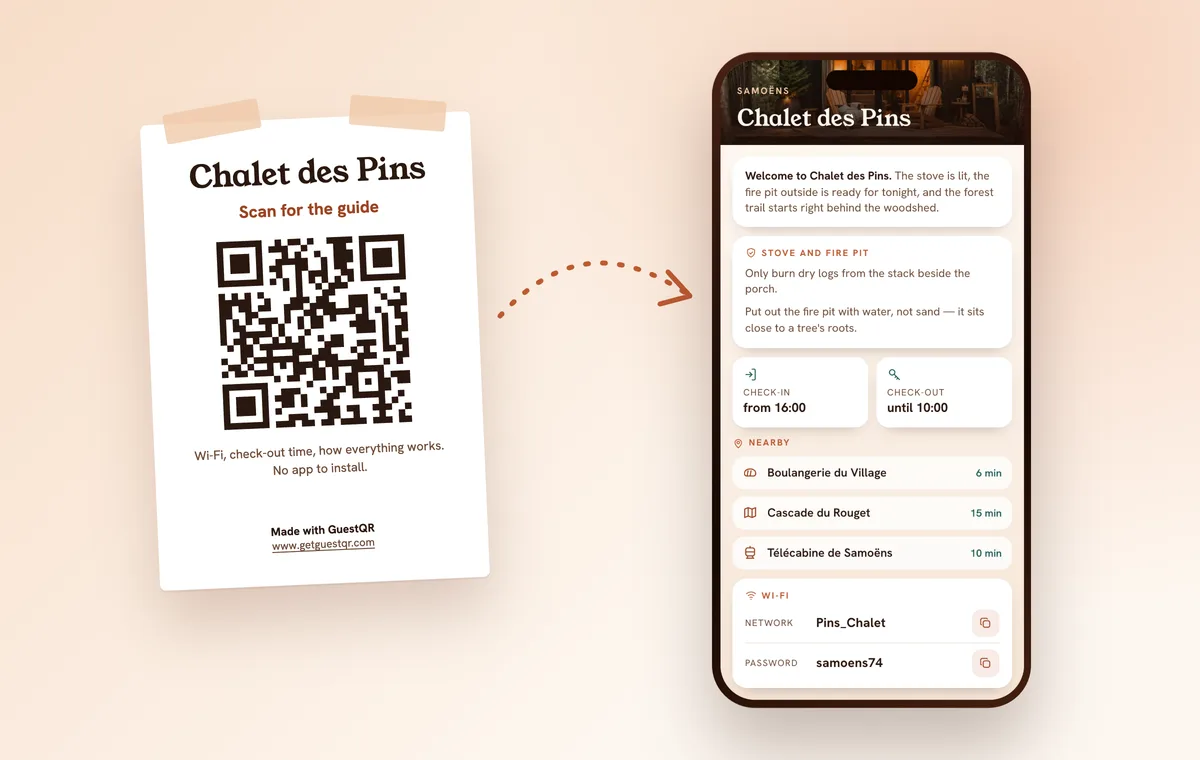
A message is read once, on the way. Everything guests look up again goes into the guide. With GuestQR, your digital welcome book has a check-in card with the time, your text, up to five photos and a video of the way to the door. The floor, flat and name on the bell sit under the address, the map button can lead straight to the entrance, and the Wi-Fi password is one tap away. Guests open it from the link in your message, in their own language, one of eight, without an app. In the flat, the QR poster on the wall opens the same guide. Paper, PDF or Airbnb’s own guidebook? Our digital guidebook comparison also shows how to make one for free.